Introduction
I find my self rather often than not in a situation where I have to trouble shoot a containerized application or a coworker needs some help doing so. In this post I want to show some practices how you can resolve your problems quickly.
On a side note: I have been nominated to be a Docker Captain. This is a big honor to me and I’m feeling really excited. For me containers in general and Docker containers in specific are some of the most disruptive and innovative features in IT.
Prerequisites
If you have not done so yet then please install Docker for Mac or Docker for Windows.
Why is this not working?
Let’s assume we are containerizing a RESTful API written in Python using Flask. The language and framework used here are not really relevant, the application could as well be a Node JS, a Java or a .NET application. What matters here is the techniques shown in an around containers.
Create a new project folder. Add a file app.py to this folder. The content of this file defines our simple API and looks like this
from flask import Flask, jsonify

app = Flask(__name__)

tasks = [
    {
        'id': 1,
        'title': u'Buy groceries',
        'description': u'Milk, Cheese, Pizza, Fruit, Tylenol',
        'done': False
    },
    {
        'id': 2,
        'title': u'Learn Python',
        'description': u'Need to find a good Python tutorial on the web',
        'done': False
    }
]

@app.route('/api/tasks', methods=['GET'])
def get_tasks():
    return jsonify({'tasks': tasks})

if __name__ == '__main__':
    app.run(host='0.0.0.0', port=5000)
If we have Python and Flask installed on our developer machine we can run this application as follows
python app.py

Then we open a Browser and navigate to http://localhost:5000/api/tasks and should see this
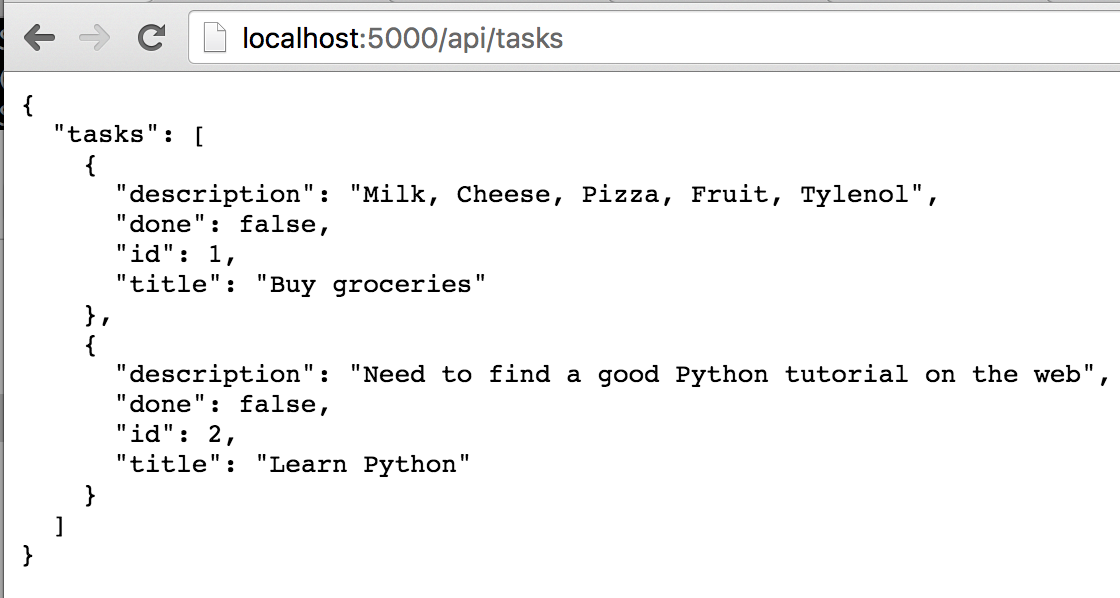
So far so good. But the goal is to run this application in a container. Let’s add a Dockerfile to our project folder
FROM python:2.7
RUN mkdir -p /app
WORKDIR /app
COPY . /app
EXPOSE 5000
ENTRYPOINT python ./app.py
Now we want to build a Docker image using the above Dockerfile. Open a terminal and navigate to the project folder. Execute the following command to build the image
docker build -t sample-api .
you should see the following output in you terminal
Step 1 : FROM python:2.7
2.7: Pulling from library/python

357ea8c3d80b: Pull complete
52befadefd24: Pull complete
3c0732d5313c: Pull complete
ceb711c7e301: Pull complete
4211bb537697: Pull complete
c48f01f3aad7: Pull complete
72d54f32484a: Pull complete
Digest: sha256:675765c16c09a0f1b5031cd8e568b1c33eebd65fd4c31b658033e3793e738d9f
Status: Downloaded newer image for python:2.7
 ---> 1c6554d85da7
Step 2 : RUN mkdir -p /app
 ---> Using cache
 ---> 6379072d224e
Step 3 : WORKDIR /app
 ---> Using cache
 ---> 7808a3ff37c1
Step 4 : COPY . /app
 ---> b3d93e6f67ae
Removing intermediate container 91c24ce21395
Step 5 : EXPOSE 5000
 ---> Running in 5cf4a42cf55a
 ---> 804134cc8977
Removing intermediate container 5cf4a42cf55a
Step 6 : ENTRYPOINT python ./app.py
 ---> Running in 8aa0fbae2f0b
 ---> ef9a88292c76
Removing intermediate container 8aa0fbae2f0b
Successfully built ef9a88292c76
Well, that was easy. Now let’s try to run a container using the image we just built.
docker run --name my-api -d -p 5000:5000 sample-api
OK, in the above command we told Docker to run a container with the name my-api as a service (or daemon), mapping the container port 5000 to the host port 5000 using the image sample-api.
We can now double check whether we were successful by using this command
docker ps -a
We should see this

Wait a second… Let’s look at the status of the container. It says Exited. What the heck…? Apparently there is a problem. Help…!?! What can we do?
Analyzing the Log
Although the container doesn’t run and is in the Exited status it’s log is still available to us. We can access the log of any container by using the command
docker logs [Container ID]
or
docker logs [Container Name]
Let’s use the container name, my-api in our case
docker logs my-api
$ docker logs my-api
Traceback (most recent call last):
  File "./app.py", line 1, in <module>
    from flask import Flask, jsonify
ImportError: No module named flask
OK, the log informs us that Python encountered an error. The module flask could not be found. Oh yeah, my bad, I forgot to install this module. The Docker base image python:2.7 from which we inherit our image does not have any 3rd party modules installed. Let’s add a file requirements.txt to our project and add flask as a dependency. The content of the file looks like this
flasknow we can modify the Dockerfile as follows
FROM python:2.7
RUN mkdir -p /app
WORKDIR /app
COPY requirements.txt /app/
RUN pip install -r requirements.txt
COPY . /app
EXPOSE 5000
ENTRYPOINT python ./app.py
Note how I added two lines after the WORKDIR command. One to copy the requirements.txt file into the image and the other to run pip install. We can now rebuild the image
docker build -t sample-api .
Once the image is built it is now including Flask. We can try to run a container with the new image. But before we do that we need to remove the Exited container which is still around using
docker rm my-api
now we’re good to go
docker run --name my-api -d -p 5000:5000 sample-api
executing docker logs my-api will show the expected output
$ docker logs my-api
 * Running on http://0.0.0.0:5000/ (Press CTRL+C to quit)
The Flask (web-) server is listening at port 5000. If we open a browser and navigate to http://localhost:5000/api/tasks we see the same result as when we ran the Python application directly on our host.
Using an alternative Entrypoint
Let’s for a moment assume that we still have problems with our container and it doesn’t work as expected. What other means do we have to analyze the situation? The problem is that every time we run a container it exits with an error. In this situation it is helpful to have the opportunity to create a container from the very same image but this time we override the predefined entry point. The ENTRYPOINT command in a Dockerfile defines what action is executed upon start of the container. In our case the action is
python app.py
which means that we run the application whose starting point is defined in app.py. Now let’s execute this command instead
docker run --rm -it --entrypoint /bin/bash sample-api
If we do this then a container based on the sample-api image is started in interactive mode with an attached terminal (-it) and the command that is executed upon start of the container is /bin/bash, that is, instead of starting our Python application we start a bash shell.
Doing that we find ourselves inside the container and have all possibilities to analyze the situation and do all kinds of experiments. We can e.g. investigate whether all expected assets are available and in the right place, or we can use pip to install (missing) modules and even execute the default start command python app.py.
If we do the latter then the difference here is that if an error happens we find ourselves still inside the container and can do further investigations and/or experiments.
Once we’re done we can exit the container by just typing exit in the shell. The container will stop and will automatically be removed from the Docker workspace due to the command line argument --rm we used when running the container.
Exec into a running Container
A third possibility we have is to intrude into a running container using the docker exec command. This is a very useful method if the container is running but it’s behavior is somewhat unexpected. Let’s start a a container from our image sample-api as we did before
docker run --name my-api -d -p 5000:5000 sample-api
We can verify using docker logs my-api that the Flask web server is running and listening at port 5000. Now we can use the following command to break into the running container
docker exec -it my-api /bin/bash
with the above command we start a new process running bash inside the container my-api. We also run this process interactively with terminal (-it).
We can now use the ps aux command to show all running processes in the container
root@6e90b9351aeb:/app# ps aux
USER       PID %CPU %MEM    VSZ   RSS TTY      STAT START   TIME COMMAND
root         1  0.0  0.0   4336   736 ?        Ss   01:03   0:00 /bin/sh -c python ./app.py
root         7  0.0  0.9  99116 19600 ?        S    01:03   0:00 python ./app.py
root        10  0.0  0.1  21928  3636 ?        Ss   01:03   0:00 /bin/bash
root        25  0.0  0.1  19188  2396 ?        R+   01:10   0:00 ps aux
And indeed we see our Python application running as well as the bash shell that we just started.
Summary
In this post I have shown a few techniques that we can use to trouble shoot misbehaving containers. I have shown how we can retrieve the log generated by the application running inside the container using docker logs. I have also shown how we can override the entrypoint of a container upon start. Last I have discussed how one can hijack a running container using the docker exec command. These are only the most straight forward techniques. I’m sure that I will elaborate on more advanced techniques in a future post. Please stay tuned.