Introduction
In the previous two posts (here and here) I first prepared a new Ubuntu 14.x VM running hosted in Hyper-V on Windows 8.1 Enterprise. Then I installed all the necessary tools and libraries to start developing Web applications using Angular JS on the client and .NET (Mono) or Node JS on the backend. In the second post I described how we can install and run MongoDB and GetEventStore on our VM. In this third part I want to install and run Elastic Search. The software of my company relies heavily on Lucene which is a low level framework for full text indexing. In the past we have build our own high level framework on top of Lucene (we use the .NET version of it). On the long run apart from being complex, this is a maintenance burden. Thus we decided to give Elastic Search a try.
Installing Java 8
Lucene and Elastic Search run on Java thus we need to first install this. Open a terminal (CTRL-ALT-T) and add the PPA
sudo add-apt-repository ppa:webupd8team/java
Update the advanced package tool (apt)
sudo apt-get update
And install JAVA
sudo apt-get install oracle-java8-installer
If we have more than one Java version installed we need to make v8 the default by running this command
sudo apt-get install oracle-java8-set-default
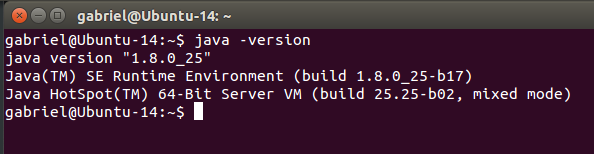
Finally we can check out which version we run
java -version
and should get something like this
Now we are ready to install and use software that depends on Java…
Installing Elastic Search
Elastic search is very easy to install and run. It is highly scalable and has a nice REST API over which all access happens. We start by downloading and installing the public signing key
wget -qO - https://packages.elasticsearch.org/GPG-KEY-elasticsearch | sudo apt-key add -Enable the repository
sudo add-apt-repository "deb http://packages.elasticsearch.org/elasticsearch/1.4/debian stable main"We run apt-get update and the repository is ready to use
sudo apt-get update
Now we install Elasticsearch
sudo apt-get install elasticsearch
If we want to configure the system such as that Elasticsearch automatically starts during bootup we can execute the following command
sudo update-rc.d elasticsearch defaults 95 10To start Elasticsearch use this command
sudo /etc/init.d/elasticsearch start
You should see something like this

Similarly to stop Elasticsearch use
sudo /etc/init.d/elasticsearch stop
Installing curl
To test Elasticsearch I want to use curl. We can install curl like this
sudo apt-get install curl
Testing Elasticsearch
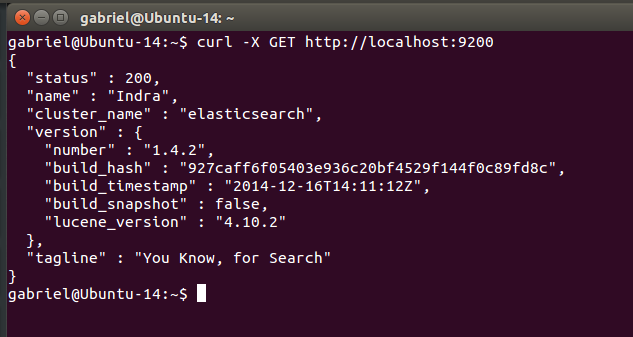
By default Elasticsearch listens at port 9200. We can use this simple command to connect with Elasticsearch
curl –X GET http://localhost:9200
If all works well we should see this
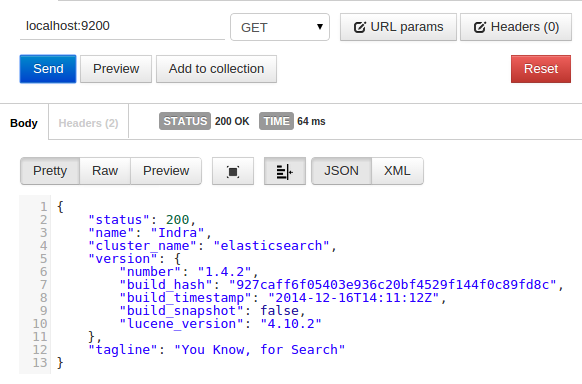
When playing around with a REST API I also like to use the Postman – REST Client for Chrome. We can install this extension from here. Using the exact same URI as with curl we have this